
Are you encountering the EA app not working problem? If your answer is YES, don’t worry, you are not alone facing this problem.
As you already know, EA is a digital platform for Windows and macOS from which you can purchase and install EA-titled games.
This is a very popular platform, allowing users not only to download and install the games but also to manage them directly from the app.
However, just like any other digital platform, EA also encounters technical issues and errors.
Recently, many users have encountered the issue while using the EA app to play their games and reported the EA app not working problem.
Why Is the EA App Not Working?
There are several factors that will affect the EA app’s performance and cause the EA app not to work.
Below, we have mentioned some of these reasons so that you will know the reasons of facing the EA app not working problem before you start troubleshooting it.
- Down or under maintenance server.
- Incorrect date and time on your device.
- The EA app does not have permissions to use the required system resources.
- EA Background Services are stopped.
- Corrupted cache files are stored in the app.
- An outdated version of the EA app.
However, if you are facing the same problem and the EA app is not working on your computer, then you can fix it by using the troubleshooting methods mentioned below.
How to Fix the EA App Not Working Problem?
Here are some troubleshooting methods that will help you resolve the EA app not working problem.
Check EA Server Status
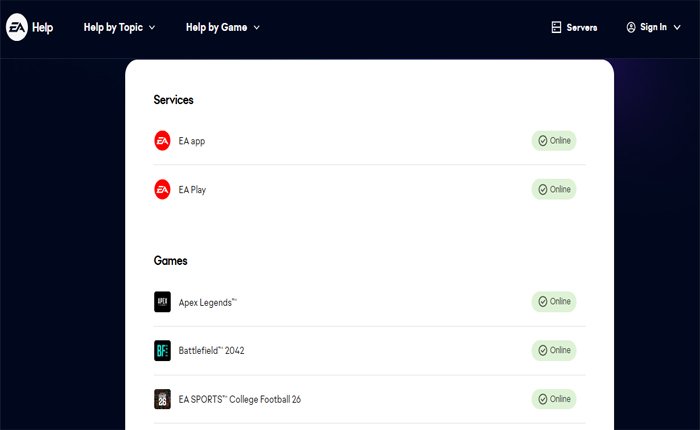
In most cases, users encounter the issue while using the EA app and its services because of a down or under-maintenance server.
That is why I personally prefer to check the current status of the server any time I encounter issues while using any application or a website.
So, before you start troubleshooting the EA app not working problem by checking the EA server status.
To check the current status of the EA server, you can visit the official website of the EA server status.
On this website, you can find the current status of the EA server.
If there is any issue with the EA server or the server is down for maintenance or update, then it is the reason why you are facing the issue with the EA app.
In that case, there is nothing you can do to fix your problem. All you need to do is keep an eye on the server status and try again after some time.
Sync Date & Time Of Your Device
If there is no issue with the EA server and the app is online, you can consider syncing your device date and time.
Sometimes, users encounter the issue while using any program or app because their device date and time do not match the server date and time.
There is a very high possibility that you are facing the issue with the EA app for the same reason.
In that case, you can fix the issue by syncing your device’s date and time.
To do so, use the steps written below:
- First, click on the Windows Icon on your device.
- Then, select the Settings option.
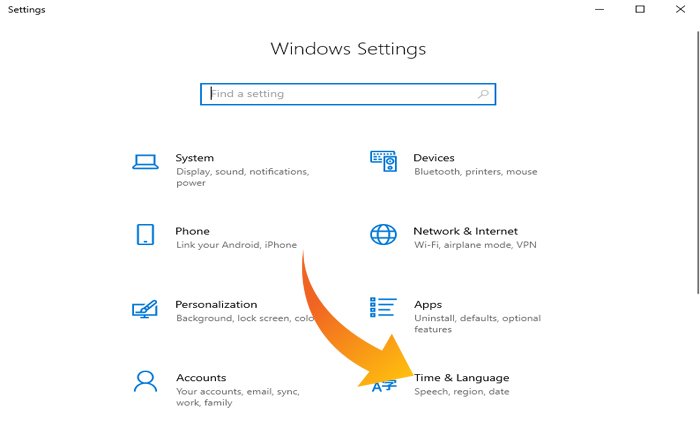
- Under the settings, select “Time & Language”.
- Now, go to the “Date & Time” tab.
- Here, toggle ON the “Set time automatically” option.
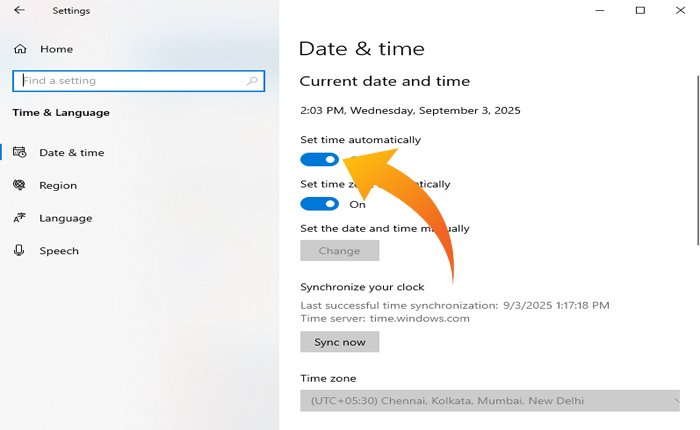
- If it is already enabled, then make sure to toggle it OFF and then ON again.
- Once done, select the correct region and click “Sync Now”.
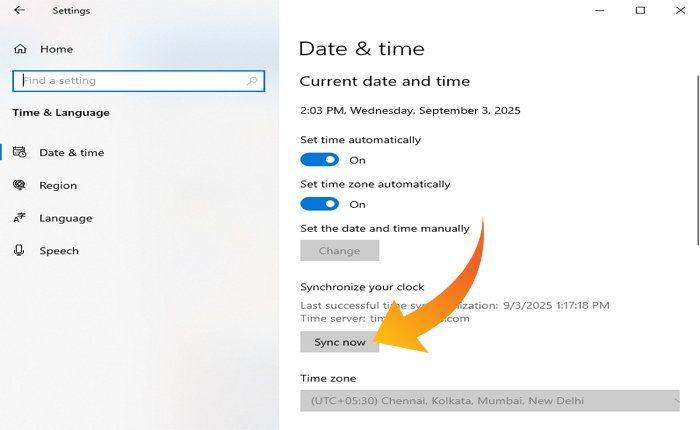
- That’s it.
Once you do that, it will sync the date and time of your device. Now, launch the EA app and verify if it is working properly.
Run As Administrator
To run any application or game, it needs to have permissions to use the required system resources.
If the app or a game does not have permissions to use the system resources, then you may encounter app is not working, app keeps crashing, and more problems.
You may be encountering the EA app not working problem for the same reason.
In that case, you can fix this problem by running the EA app as an administrator.
This will provide the EA app administrator privileges, and all the issues caused by a lack of resources will be resolved.
To do so, simply click on the Windows Search Bar and search for the EA app.
From the search result, select the “Run as administrator” option and check if the app is working properly.
If this resolves the issue, then you can set the EA app to always run with administrator privileges.
Start Background Services
To use the EA app on your device, the EA Background Services needs to be started.
If it is stopped, then you won’t be able to use the EA app and download any game.
To check and enable the EA Background Service, use the steps written below.
- Click on the Windows Search Bar and search for “Services”.
- Click “Open” to open the services window.
- This will show you the list of services on your device.
- From this list, look for the “EABackgroundService” option.
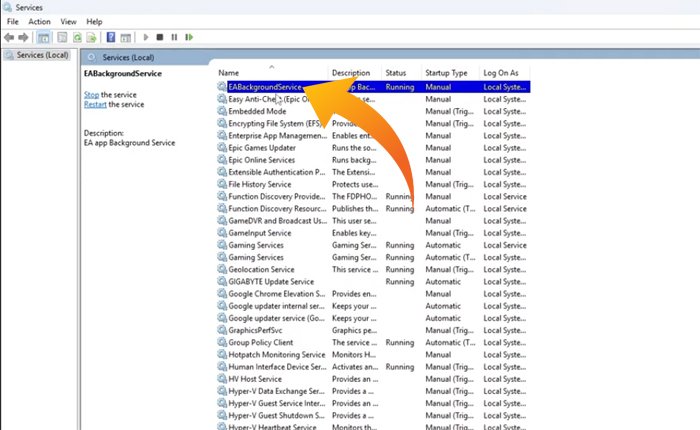
- Once you find it, right-click and select “Properties”.
- On the properties window, look for the “Startup type” option.
- Then, set it to “Automatic”.
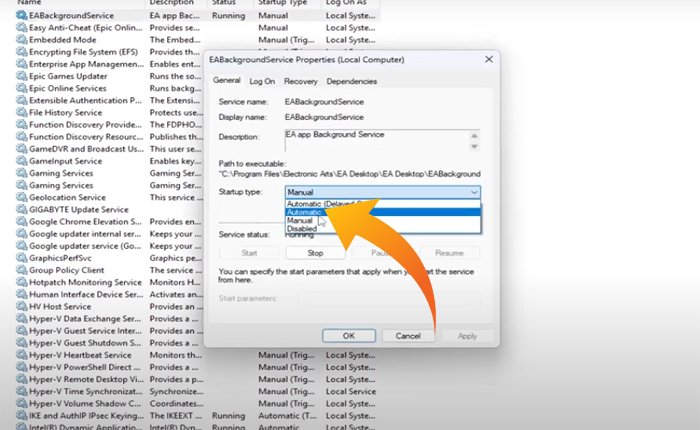
- Once done, click “Apply” and then “OK”.
- That’s it, now restart your PC and check if the problem is fixed.
Install the Latest Version Of the EA App
If none of these troubleshooting methods works for you, then you should consider uninstalling and reinstalling the latest version of the EA app.
To do so, use the steps written below:
- Open the Control Panel.
- Then select “Programs”.
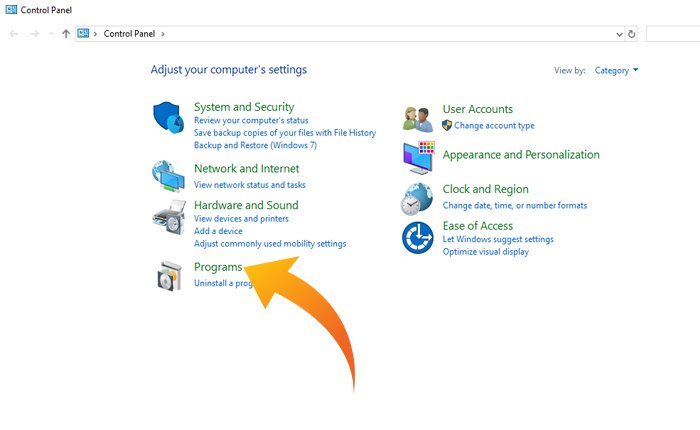
- And select “Programs and Features”.
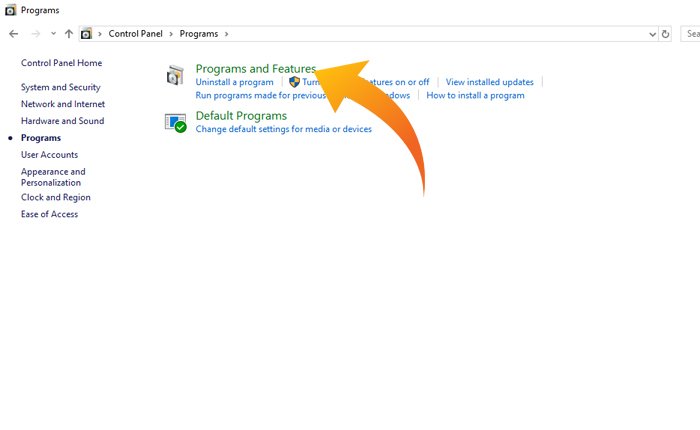
- Here, you will see the list of all programs and features installed on your device.
- Look for the EA app and right-click on it.
- From the menu, select “Uninstall”.
- Once done, go to the official EA website and download the latest version of the EA app.
- After that, log in to your account and check if the problem is fixed.
That’s it, we hope this troubleshooting guide helps you resolve the EA app not working problem.